How to connect Phonak hearing aids
One of the biggest advantages of Phonak hearing aids is their ability to connect wirelessly to a wide range of devices. Whether you want to take phone calls, stream music, or hear your TV more clearly, Phonak makes it easy to stay connected. At Japebo, we not only provide the original accessories to support this functionality—we also help you understand how to use them.
How to connect Phonak hearing aids to iPhone
Most modern Phonak models, such as those powered by the Marvel, Paradise, or Lumity platforms, support direct Bluetooth connectivity with iPhones. To pair your hearing aids:
-
Open the iPhone Settings and go to Bluetooth.
-
Turn your hearing aids off and then back on to put them in pairing mode.
-
Select your Phonak device when it appears in the Bluetooth list.
-
Confirm the pairing when prompted.
Once paired, audio from phone calls, music, and apps will stream directly to your hearing aids. You can also download the myPhonak app from the App Store for even more control over your settings and programs.
How to connect Phonak hearing aids to a TV
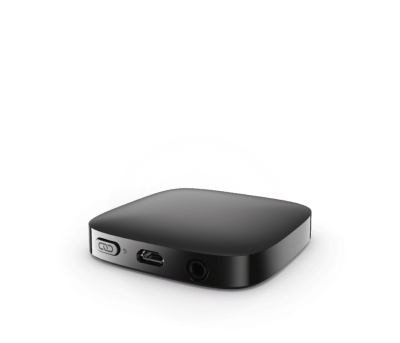
For the best results, use the Phonak TV Connector—a plug-and-play accessory that transmits TV audio directly to your hearing aids in real time. Here’s how it works:
-
Plug the TV Connector into your TV’s audio output (optical or 3.5 mm jack).
-
Power on the connector; it will automatically search for nearby compatible Phonak devices.
-
Place your hearing aids within 1 meter to initiate pairing.
Once connected, your hearing aids will automatically switch to TV mode when the TV is on and revert to the regular setting when you move out of range.
How to connect Phonak hearing aids to an Android phone
Like with iPhones, many Phonak devices support direct streaming to Android. The process is nearly identical:
-
Turn on Bluetooth on your Android phone.
-
Turn your Phonak hearing aids off, then back on to enter pairing mode.
-
Select the hearing aids from the list of available devices on your phone.
-
Confirm the pairing.
We also recommend downloading the myPhonak app for Android, which allows for remote fine-tuning, battery monitoring, and sound environment customization.
How to connect Phonak hearing aids to a computer
This depends on whether your computer supports Bluetooth audio. If it does:
-
Go to your computer’s Bluetooth settings and enable pairing mode.
-
Restart your Phonak hearing aids to activate Bluetooth pairing.
-
Select the device from the computer’s Bluetooth list.
If your computer doesn’t support Bluetooth streaming to hearing aids, you can use the Phonak TV Connector or a Bluetooth transmitter dongle for a stable, high-quality audio connection.
To make the most of your connected hearing experience, ensure your Phonak hearing aids are fully charged, kept up-to-date via your app, and always used with original accessories.
At Japebo, we offer:
Looking to master your Phonak hearing aids from every angle?
Don’t miss these related guides:
-
Learn everything about Phonak hearing aids and their key features
-
Discover how to properly clean and maintain your devices
-
Get tips on using your hearing aids in daily life
-
Explore our guide to batteries and charging to stay powered all day
With the right tools and knowledge, connecting Phonak hearing aids to your world has never been easier.